How to disable sleep and hibernation on Mac
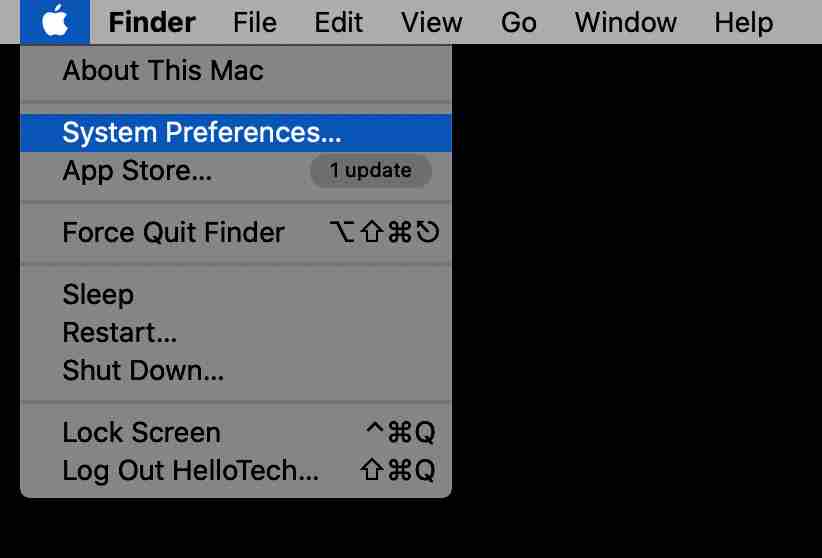
1. Open the Apple menu. You can click the Apple icon in the upper left corner of your screen.
2. Then select System Preferences.
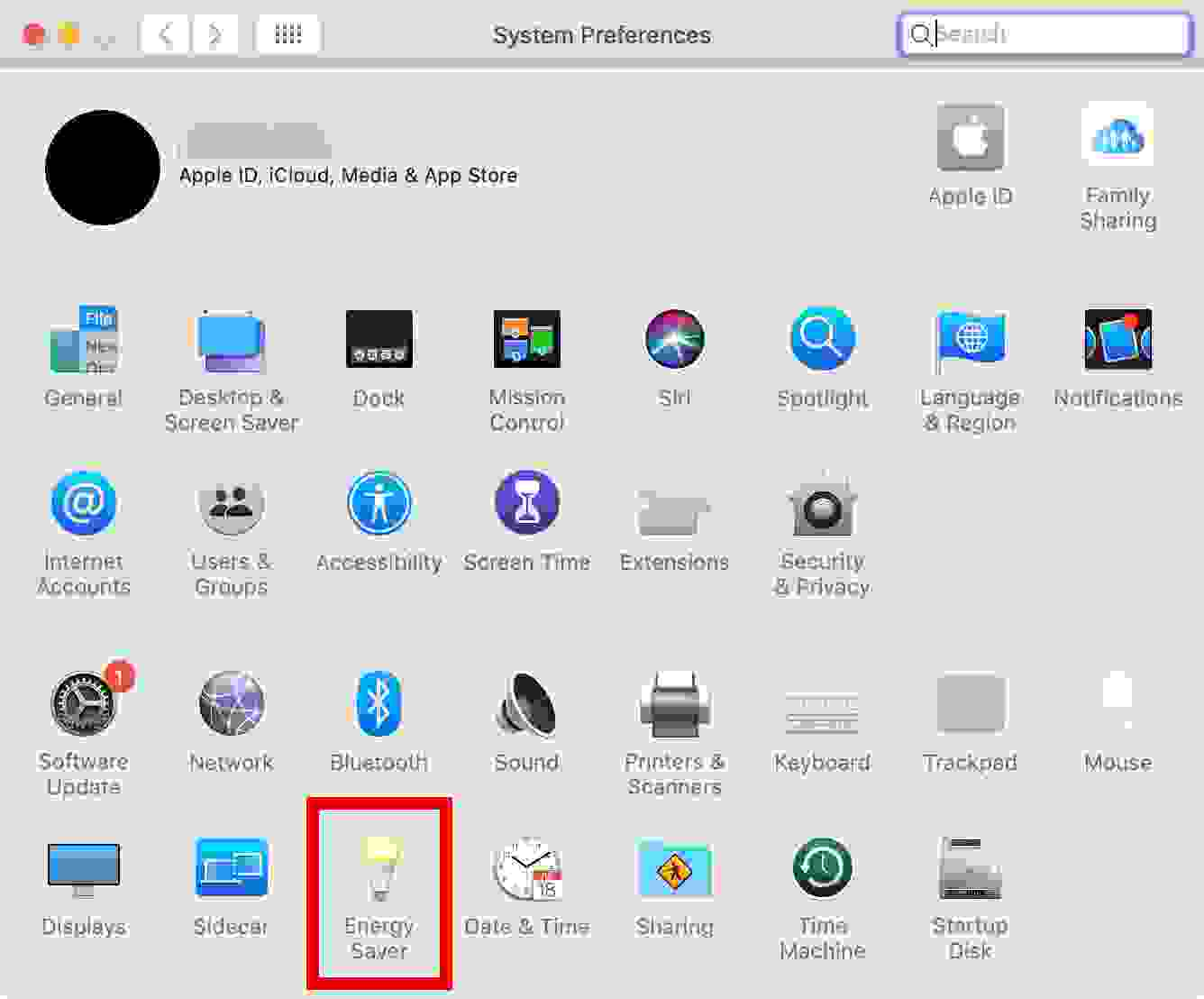
3. Next, select Energy Saver. This is an icon that looks like a light bulb.
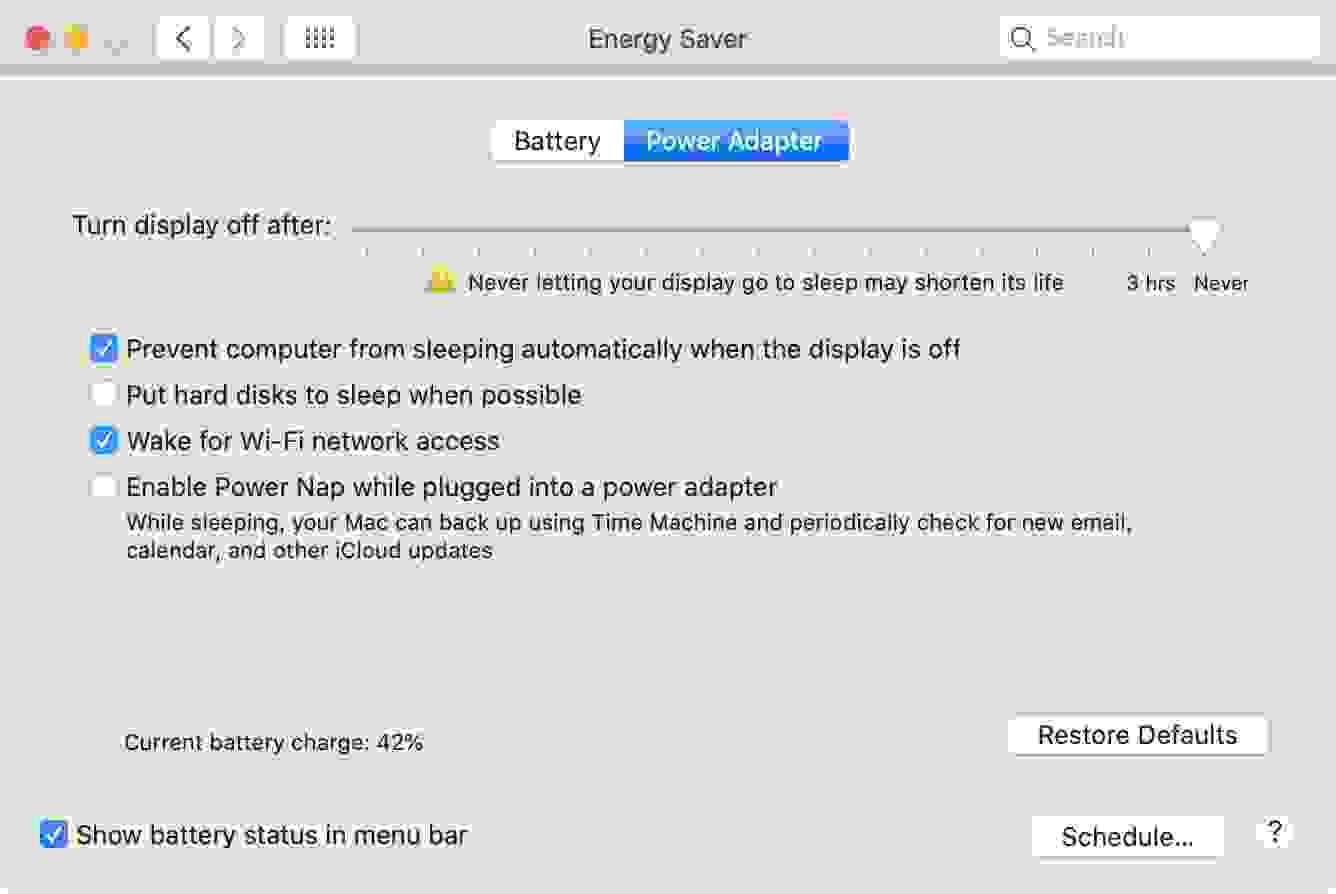
4. Check the box next to Prevent the computer from sleeping automatically when the display is off.
5. Then uncheck the box next to Put hard disks to sleep when possible.
6. Finally, drag the Turn display off after the slider to Never.
How to disable sleep and hibernation on Windows 10
To disable sleep mode on a Windows 10 PC, head to Settings > System > Power & sleep. Then select the drop-down menu under Sleep and select Never. If you are using a laptop, do this for battery mode too.
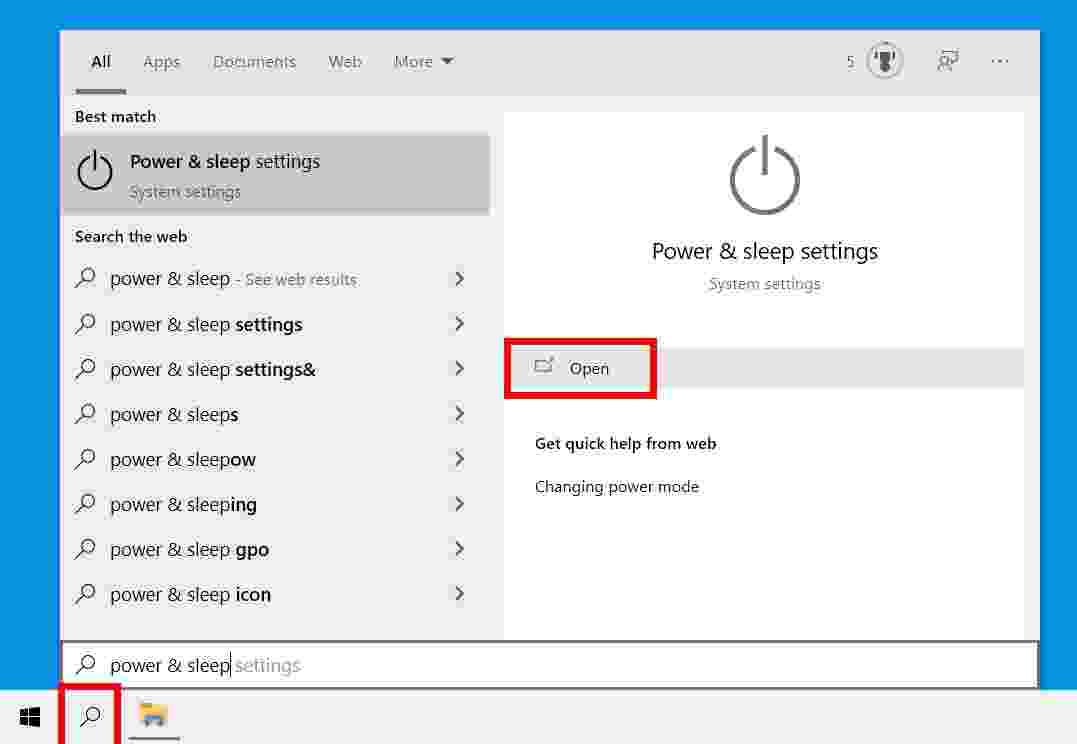
Click the magnifying glass icon in the lower-left corner of your screen. It is next to the Windows 10 logo.
Then type power & sleep into the search bar and click Open. You can also press Enter on the keyboard.
3. Finally, click the drop-down box under Sleep and change it to Never.
Now your computer or laptop will no longer enter sleep mode. You can also choose to adjust the number of minutes it takes for your computer to enter sleep mode after not using it.
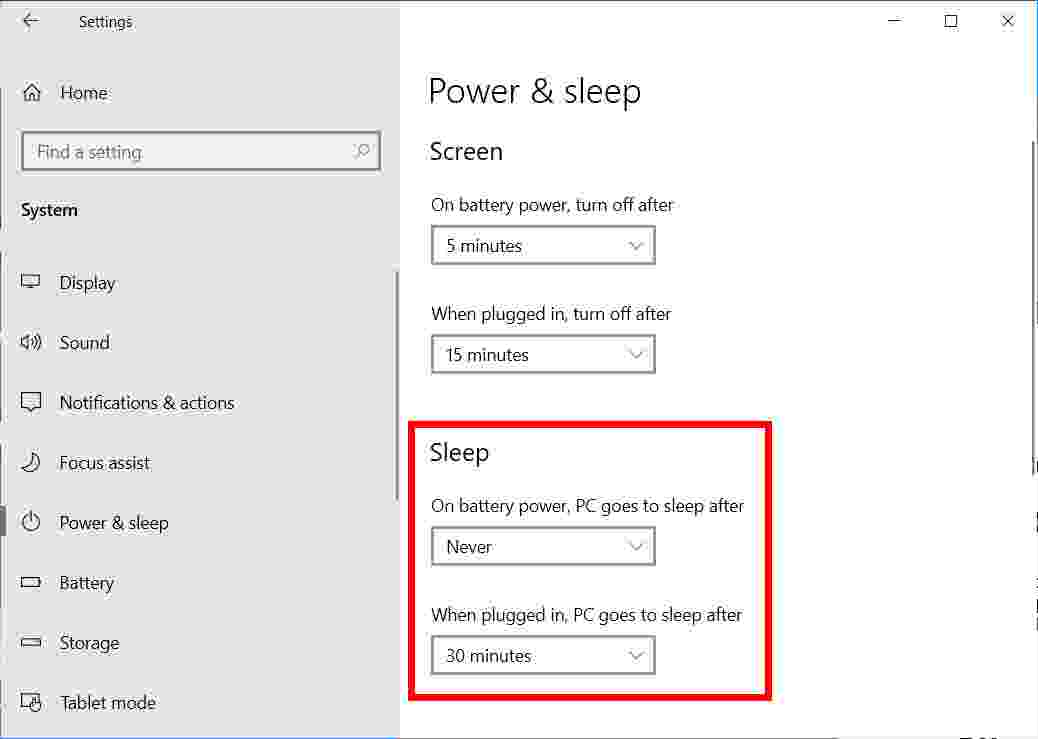
Note: You’ll only see two drop-down menus under Sleep if you’re using a laptop.